Remember how fast your PC ran when you first got it? Has it become all sluggish and slow as molasses? Don’t worry — we’ll help you boost your old Windows 7 or Windows 10 computer and get it running just like new.
Why is my computer so slow?
PCs run slower over time. Their inevitable slowdown is generally due to issues with software, hardware, or a combination of both.
The primary reasons for a sluggish PC are:
- Too many background apps: Having too many apps installed and running in the background can overload your PC’s CPU and RAM. When that happens, they can’t focus on the things you actually want to do.
- Outdated drivers: The basic drivers that come with your PC or laptop often don’t unleash the full performance of its hardware. For example, newer graphics drivers offer performance optimization for graphics cards and games that you won’t get with age-old drivers.
- Clogged fans and overheating: A PC full of dust will run too hot. If that’s happening, your computer may try and cool itself down by turning off or drastically slowing down.
In this article we’ll tackle these one by one and show you the best ways to speed your computer up again.
Is my internet slow or is the computer responsible?
If websites and downloads are running slower than usual, your PC might not be the culprit after all. Instead, the issue could be a slow internet connection or a problem with your browser. Try performing a speed test to evaluate the health of your internet connection. Depending on your results, you’ll know whether the issue is with your PC or the internet itself.
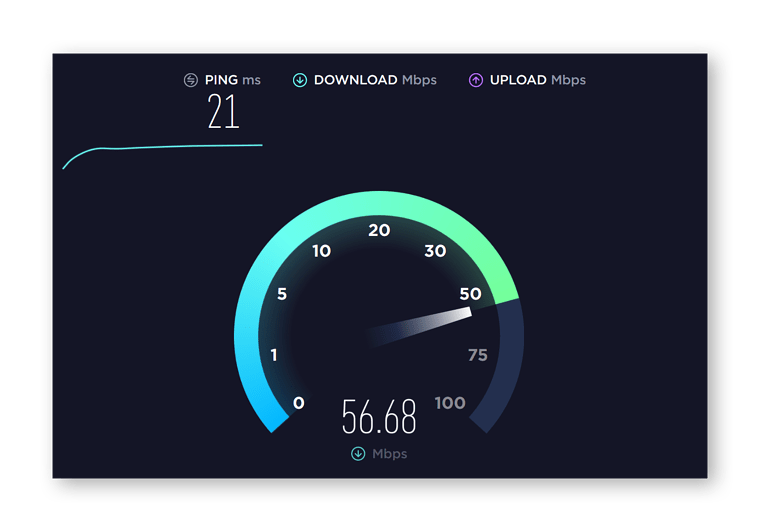
If your speed test returns poor results, there are many ways you can speed up your internet connection. It might also help to clean up browser cookies and clear your browser history.
Regardless, the following steps are good to perform on a regular basis to keep your PC in tip-top shape and even speed it up above and beyond expectations.
How To Speed Up Your Slow Pc
No matter whether your PC is from 2009 or 2022, the more you use it, the slower it becomes. This holds especially true for Windows 7, but applies to Windows 10 and now recently 11 as well. Luckily, the steps to speeding it back up are fairly simple to perform.
Let’s start with the basics: If you have multiple apps running on your machine, things can slow down after a while. It’s simple math. If your PC has, for example, 4 GB of memory (“RAM”), and your browser and mail application take up 4 GB, then it’s reached its limit.
1.Close Apps You Don’t Need
What happens next is that Windows tries to offload some of the RAM tasks back to your hard disk in a process called “paging.” But since your hard disk is significantly slower than your RAM, the result is that your machine will feel sluggish as things are constantly being loaded in and out of RAM.
Processors (CPUs, or Central Processing Units) struggle with too many things happening at once. If there is a lot of background activity, your CPU might not be able to process it all, which in turn causes delays. That’s why our first piece of advice is: Only leave open the applications you need!
1.Close applications: If you don’t need that email or gaming app running at the moment, close it!
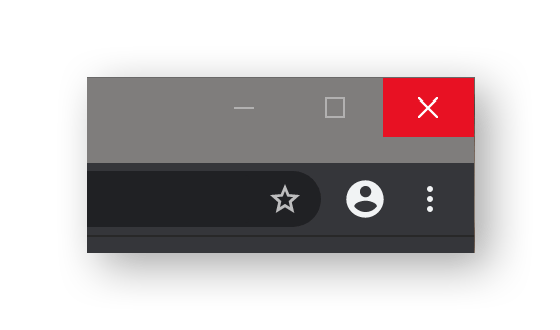
2.Close tabs: What many people (including a majority of my friends and co-workers) don’t realize is that a huge amount of browser tabs can severely slow down their machines. So whatever you do, don’t accumulate tons of tabs:
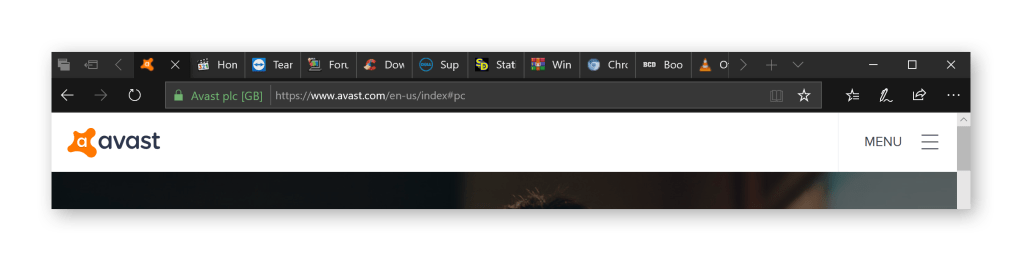
Hint: Many browsers offer a way to collect and save tabs for later.
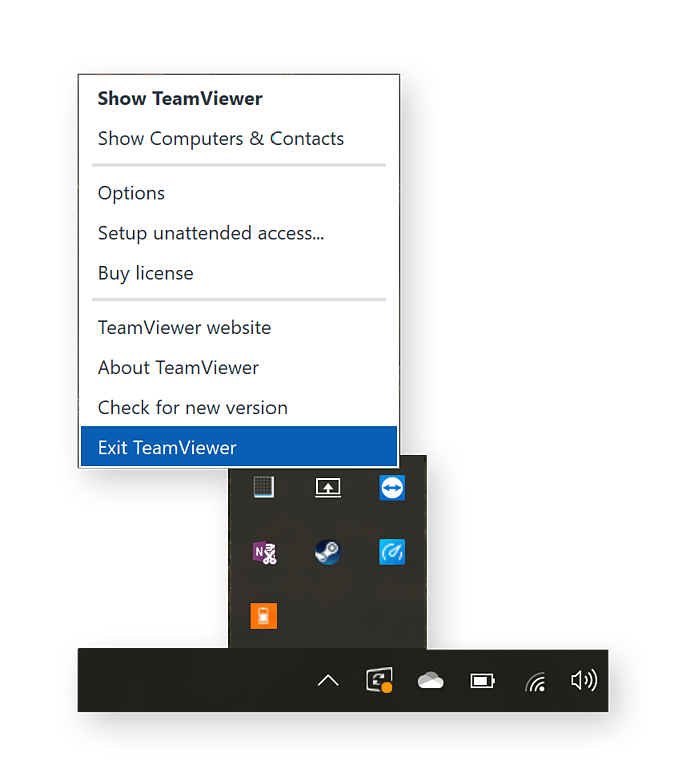
Close background apps: Many applications install background apps to allow for a quicker launch or provide functionality such as update mechanisms. To see these background apps, click on the little arrow in the bottom-right corner of your screen. It’s usually enough to select one of the apps you don’t need at the moment and click on “Quit” or “Exit” to end it. Be aware that these background processes will restart themselves later. Read more under this section to disable startup items manually, or use Sleep Mode in Avast Cleanup for PC to get rid of all background noise automatically (more on that below).
2. Update drivers to speed up your PC
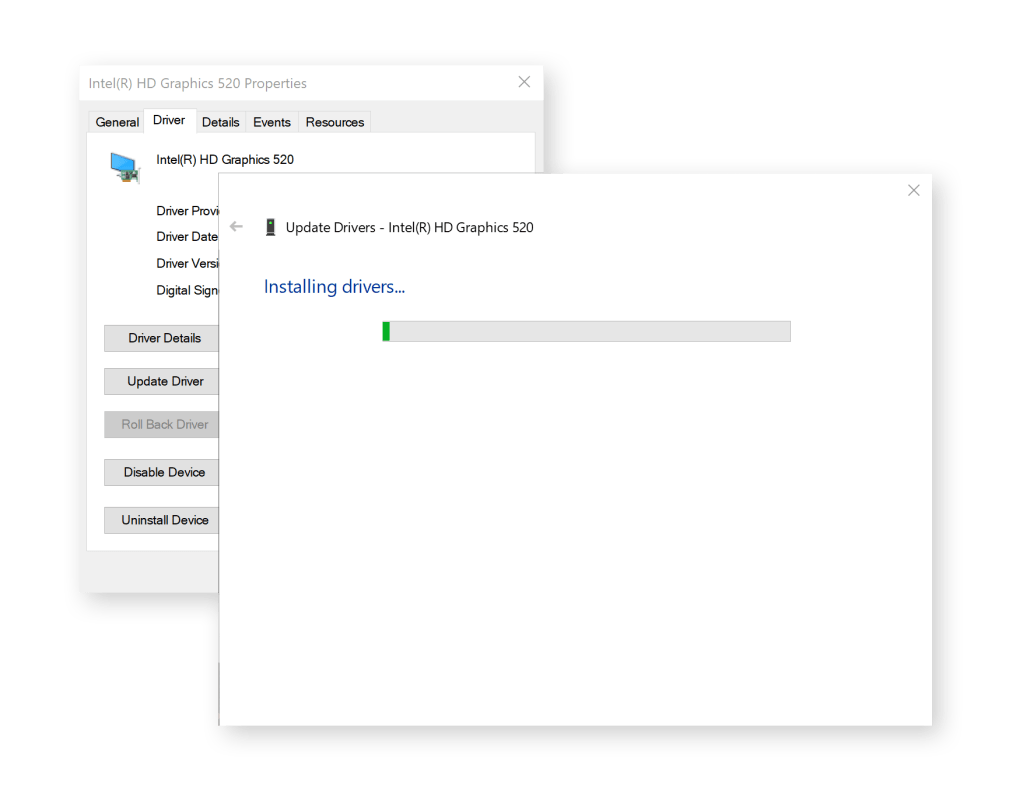
Device drivers are pieces of software that control how your hardware runs and works. For example, a graphics driver is responsible for drawing the picture you see on your screen or sending images to print. Without drivers, devices either work poorly or not at all. That’s why updating drivers is key for a fast PC.
To handle it automatically, get a Driver Updater and let it do the job for you.
3. Uninstall unused programs on your PC
The average user has dozens upon dozens of applications installed on their computer. But let’s face it: Half of the apps on your machine are probably worthless or long-forgotten, taking up precious memory and hindering performance. It’s time to get out the digital dustbuster to recover some space and speed up your PC again.
Here’s how to get rid of unused programs:
Uninstall unused programs in Windows 10
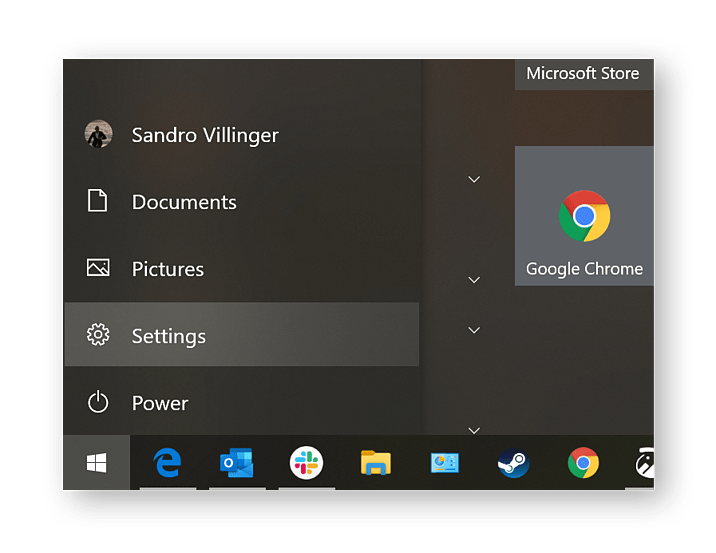
1.Click on the Start button and select Settings.
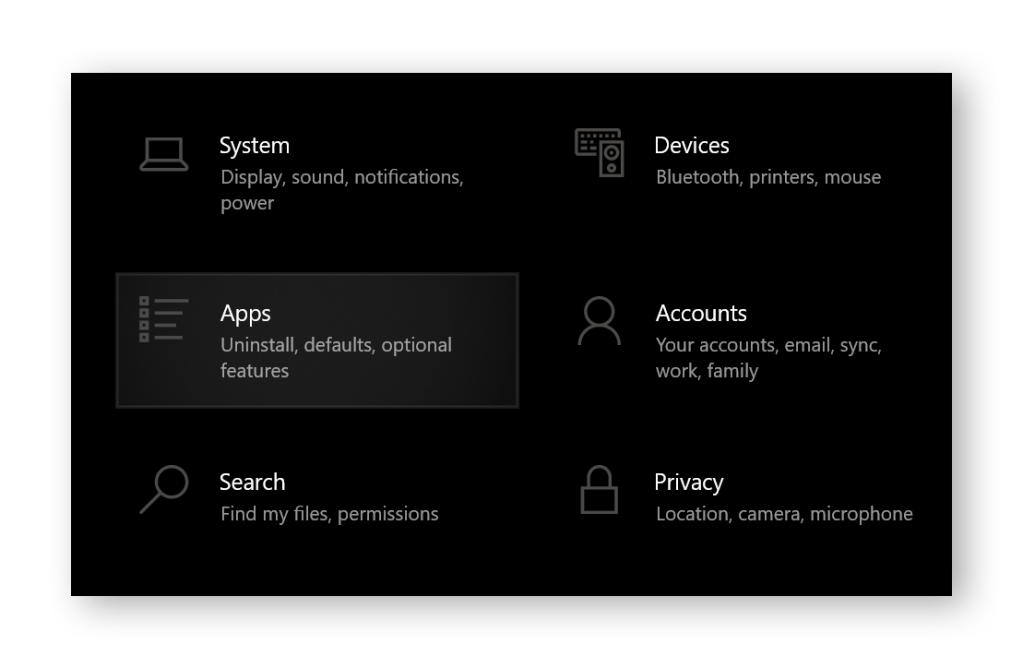
2.Next, click on the Apps section.
3.Here, you’ll find a long list of both apps and programs:
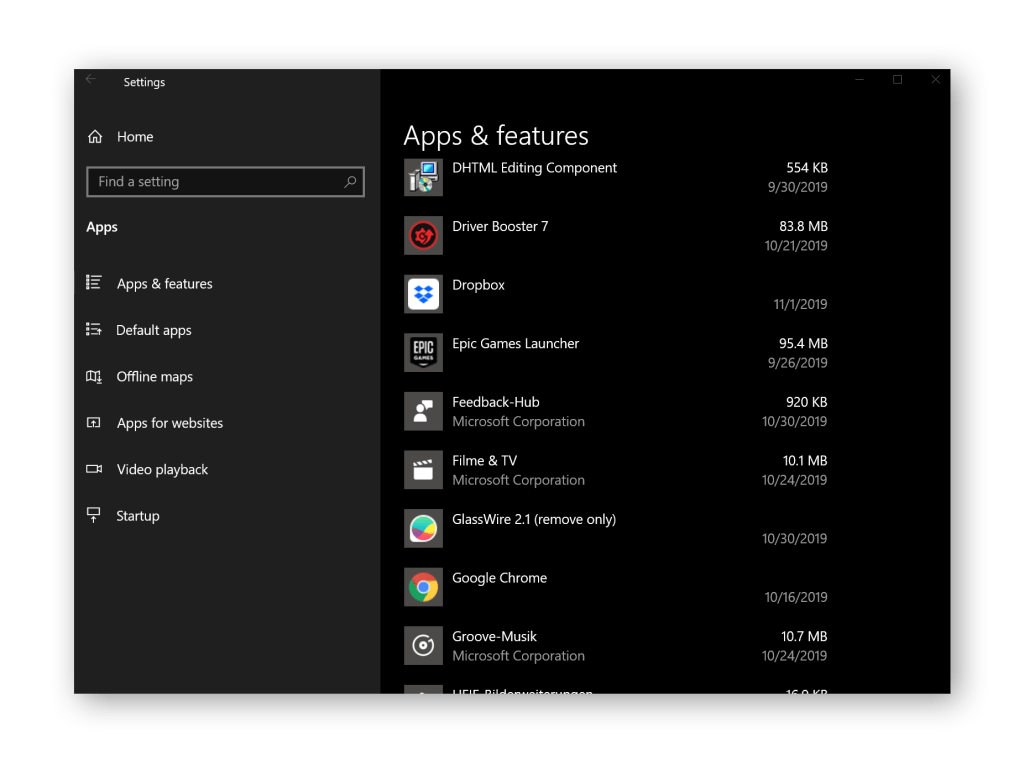
Go through the list carefully and check which apps you might not need anymore. Note that Windows 10 includes some sponsored apps and trials, such as Candy Crush Saga, which take up space on your PC and slow things down — so watch out for these entries! If you don’t recognize a particular app or aren’t sure whether it’s useful, use a search engine to see what others are saying about it.
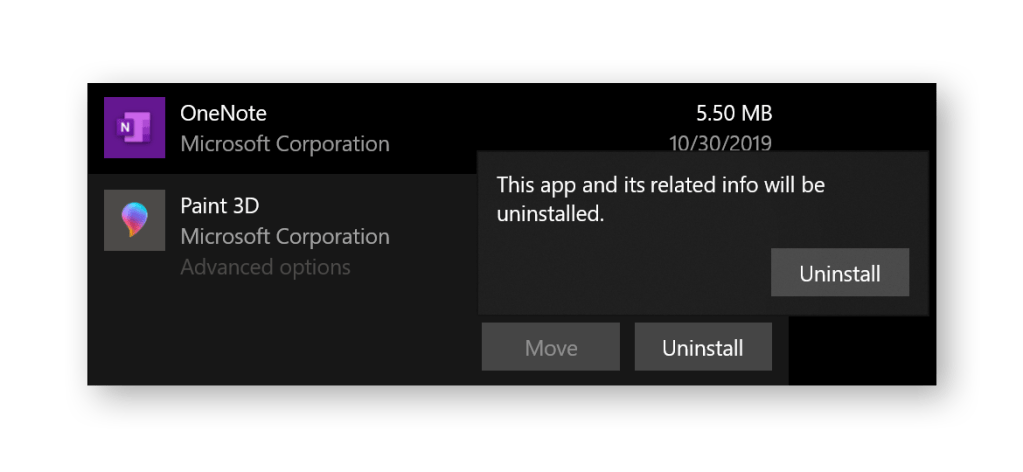
4.Once you’re sure you don’t need a specific app or program anymore, click on it and then on the Uninstall button.
5.Rinse and repeat! Do this for all apps you don’t need. You’ll find that a lot of applications are just lingering on your hard disk with no purpose, actively slowing down your PC. Time to get rid of them!
Uninstall unused programs in Windows
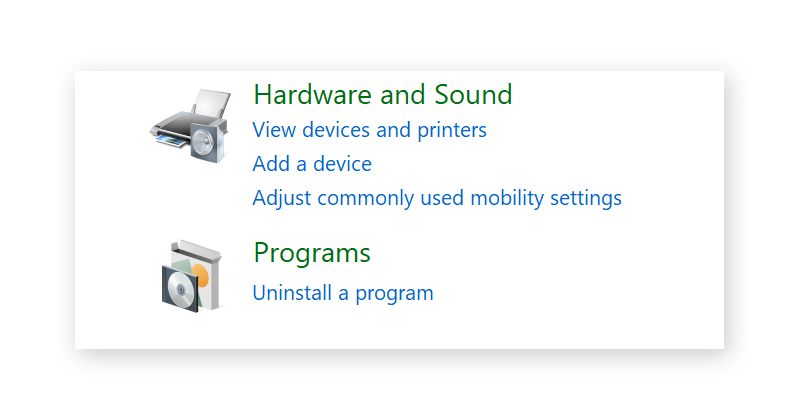
1.Click on the Start button in the lower-left corner and select Control Panel.
2.From here, click on Uninstall a program
3.The following list gives you an overview of all installed applications on your machine. Go through these step-by-step and determine which ones you no longer need. To help make that decision, we recommend clicking on the Installed On tab to see which apps were installed a long time ago:
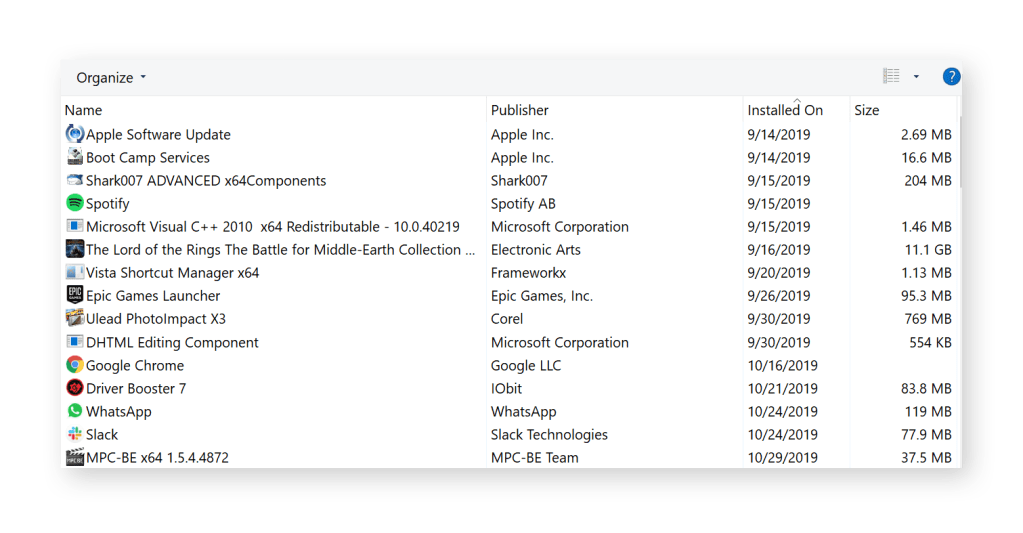
If you see some apps here that you don’t recognize, do a quick search to confirm whether or not you need it before you give it the boot.
4.Found an app you definitely no longer need? Click the Uninstall button and follow the on-screen instructions to get rid of it.
Use our software quarantine feature to “pre-uninstall” junk applications
To make the process of identifying and uninstalling apps easier, safer, and even more thorough, we’ve developed a feature called Software Cleanup. Its primary function is to detect bloatware, such as trials, adware, and other junk. In addition, you can use it to find apps you no longer need and get rid of them easily.
Check out our Facebook store here https://www.facebook.com/Inteletech/shop/?ref_code=share_shop&ref_surface=share_shop
Stay online here : https://shop.vox.co.za/leyshunler
Get a 30 day free trial on Avast.com/businesshub
We’ve also Started a YouTube channel here : https://youtube.com/channel/UCPB5O0AsFH2PEeGnN-N71sw
Book a consultation, we will create a solution that fits your needs .


 Inexora
Leave a comment